Oracle Bi Solutions

  • Subscribe to our RSS feed.
  • Twitter
  • StumbleUpon
  • Reddit
  • Facebook
  • Digg

Monday, 6 May 2013

Reset forgotten password in OBIEE 11G RPD

Posted on 00:38 by Unknown

In OBIEE 10g, If you forgot the repository (RPD) password, we can easily rest with simple straight configuration change (AUTHENTICATION_TYPE = BYPASS_NQS) in NQSConfig.ini file.This was a security breach in OBI 10g versions and it didn’t have had fix for it. Fix? Why?… Yes, as a developer we might still need such a (un)fair upshot. But it is a very dangerous security breach. If anyone gets the production RPD, he can simply bypass the rpd security and can deploy it to see the valuable data. As the OBI rpd doesn’t require someone to know the production Database password, the information theft is quite possible.
So unlike OBIEE 10G, The newer OBIEE 11G has a very tight security i.e. TWO level key authentication to open a RPD in online mode and one key (RPD password) in offline mode. Either of the modes cannot open the repository with some configuration changes. So be careful if you want to reuse the OBI repository, make sure that you have memorized the RPD password.  There is NO any reset process.
But however, you can get a password for an already deployed RPD. With the help of wlst script, you can get the forgotten OBI Repository password that is deployed earlier.
To know forgotten OBIEE11G Repository (RPD) password:
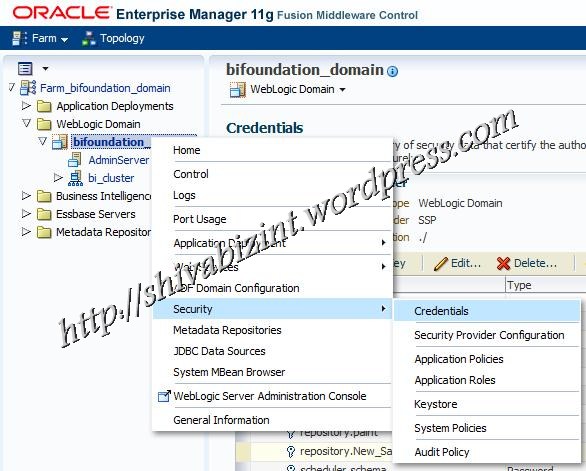
Login to weblogic EM (http://kishore:7001/em) and navigate to credentials store page.

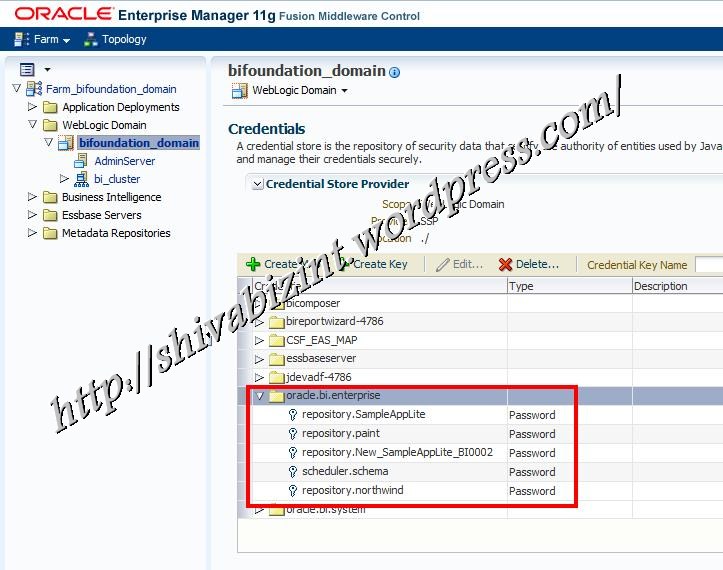
Expand the key map: oracle.bi.enterprise. This is the key map which stores all the repository passwords that are deployed.

For the context of this blog post, I would like to show you how to know the forgotten password of a deployed repository.
In above image, I have 4 repositories and one scheduler schema keys in my credential key map. From the list, to get the password of “SampleAppLite_BI0001” repository, follow these steps:
  • Open command prompt,
  • E:\>cd <OBIEE_HOME>\oracle_common\common\bin
  • Run wlst scrpt: <OBIEE_HOME>\oracle_common\common\bin>wlst.cmd
  • Connect to weblogic domain with the command:

    connect(“<weblogic_AdminUser>”,”<weblogic_AdminUser_Password>”,”<Adminserver_Hostname>:<Admin_Portno>”) 
    e.g: wls:/offline> connect(“weblogic”,”weblogic123″,”kishore:7001″)Connecting to t3://localhost:7001 with userid weblogic …Successfully connected to Admin Server ‘AdminServer’ that belongs to domain ‘bifoundation_domain’.————
  • Run listCred() command to get the password of SampleAppLite_BI0001 repository
    wls:/bifoundation_domain/serverConfig>listCred(“oracle.bi.enterprise”,”repository.SampleAppLite_BI0001″)
    Location changed to domainRuntime tree. This is a read-only tree with DomainMBean as the root.
    For more help, use help(domainRuntime)

    [Name : tempvalue, Description : null, expiry Date : null]
    PASSWORD:Admin1234
That’s it, you can see the password: Admin1234 for my SampleAppLite_BI0001 repository.
Read More
Posted in OBIEE | No comments

Upgrade Old nested folders using the Convert Presentation Folders Utility in OBIEE 11.1.1.7.0

Posted on 00:02 by Unknown

Starting in Release 11.1.1.6.2, you can designate child presentation tables using the Child Presentation Tables tab in the Presentation Table dialog to give the appearance of nested folders in Answers and BI Composer. However, in previous releases, repository developers could achieve one level of nesting in Answers by adding a hyphen at the beginning of a presentation table name, or by adding an arrow (->) at the beginning of a presentation table description.
For e.g.: In previous versions, if you wanted to move the “more Time Objects” to the table/folder, then we will place the ‘->’ in description as shown below.

If you used these methods to achieve nesting, it is recommended that you run the Convert Presentation Folders utility to convert your metadata to the new structure.
Note:
Achieving nesting by adding hyphens at the beginning of presentation table names or adding arrows at the beginning of presentation table descriptions is deprecated for this release and will be removed in a future release.
To use the Convert Presentation Folders utility:
  1. Open your repository in the Administration Tool in offline mode.
Note: Do not run the Convert Presentation Folders utility in online mode.
  1. Select Tools, and then select Utilities.
  2. Select Convert Presentation Folders and click Execute.
The hyphens and arrows disappear from presentation table names and descriptions, and the affected tables are listed as child tables for the appropriate parent object.
Once you converted, the above example will be converted to the new definition as follows:
There are no limits on nested folders depth


Read More
Posted in OBIEE | No comments

Sunday, 5 May 2013

OBIEE 11G Integration With SmartView – Create Reports from Excel and save in OBIEE catalog

Posted on 23:45 by Unknown

Create an analysis in Excel using SmartView and save in OBIEE catalog
Using SmartView add-in, we can create OBIEE reports from Excel/Word and save in OBIEE catalog.And we can see those reports within OBI Presentation services and can use it for further analysis.
To create an OBIEE report from excel, follow these steps.
To create a new analysis from SmartView,  Open Excel and connect to Oracle BIEE.
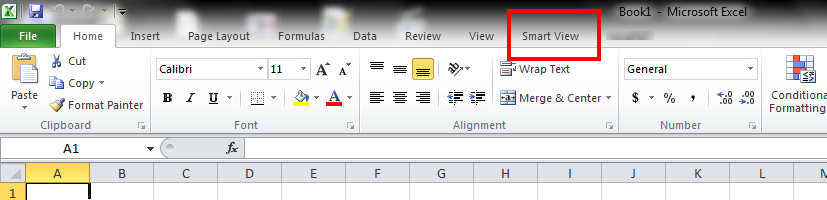
Navigate to Oracle BI EE tab.
And then click on “View Designer” button.
SmartView_Integration_6
The View Designer button will open the Oracle BI EE presentation services Subject Areas. Expand the Subject Areas of your choice and drag the columns of analysis into the areas of report layout.
The SmartView has variety of View types, for demonstration purpose I am using Pivot table.
The Available Report View types are:
SmartView_Integration_7
In my example I am creating a pivot table, so dragged the Order type in Rows, Order Status in Columns, and Revenue in Measure block. And I am grouping the result set by year, so moved the Per Name Year in Section part.
SmartView_Integration_8
The wizard will generate a report like this in Spreadsheet:
SmartView_Integration_9
Now to save this report in OBIEE catalog, click on publish View button.
SmartView_Integration_10
It will open the OBIEE catalog folders. You can save the report into a folder of your choice that created in OBIEE catalog.
SmartView_Integration_11
Select the Folder in OBIEE catalog and give a name to report and click save.
SmartView_Integration_12
SmartView_Integration_13
Now the report is saved in OBIEE catalog like the analysis we normally save in OBIEE Catalog:
SmartView_Integration_14
See how the report is rendered in OBIEE Presentation services.
SmartView_Integration_15
There are many scenarios where we could use this powerful SmartView Add-in for a great flexible usage of OBIEE reports.
Read More
Posted in OBIEE | No comments

OBIEE11G and SmartView integration – Oracle BI Office Add-in

Posted on 23:43 by Unknown

Oracle Hyperion Smart View for Office Integration. SmartView is much more powerful than its well-known predecessor, the Hyperion Excel Add-In. It not only connects to Essbase, Hyperion Planning, and now to Oracle BI EE. The Smart View 11.1.2.2 Add-in replaces the Oracle BI Office Add-in as the primary Office application for Oracle BI Foundation. For benefit of the users, both are still available with OBI 11.1.1.7.
Smart View allows users to connect to Oracle BI EE server and utilize the content created in Oracle Business Intelligence Answers dashboards and analyses. In addition to working with pre-created content, Smart View users can create ad hoc queries in the form of simple views with the View Designer, using Oracle BI EE Presentation Server as the data source. The views created can then be published to the Oracle BI EE Presentation Catalog, where they can be edited further.

SmartView Features

When connected to an Oracle BI EE data source in Smart View, you can:
  • Connect to Oracle BI EE Presentation Server.
  • Navigate through the Oracle BI EE Presentation Catalog.
  • Import pre-created BI Answers views from Presentation Catalog into Microsoft Excel, PowerPoint, and Word. For example, you can:
    • Insert Oracle Business Intelligence tables, BI pivot tables, and BI graphs into Excel as refreshable, editable objects.
    • Apply Excel formatting to BI data; formats are retained when you refresh.
  • Copy Oracle BI EE Dashboard content and paste it into Smart View client documents. The data, metadata, and view layout are copied.
  • Create simple views in Excel using Oracle BI EE Presentation Server as the source for metadata and data.
  • Interact with content imported into Smart View documents, such as prompt selections.
  • Manage the imported content in Smart View; for example, refresh, mask, copy and paste, and document contents.
  • Mask BI data from Oracle BI EE objects in Office so that users must log in to view the data. Masked objects can be viewed upon refresh.
  • You can use Visual Basic to program your own Oracle BI EE interfaces.
    The New VBA Functions to Support Oracle BI EE are:
    • InsertView—Insert an Oracle BI EE object into Smart View
    • EditPrompts—Edit the prompts of a view.
    • EditPagePrompts—Edit the page selections of a view.
    • GetPrompts—Get prompt values of a view.
    • GetPagePrompts—Get page selections of a view.
    • DeleteView—Delete a view in an Office application.
    • DirProperties—Fetch properties of a directory.
    • InvokeMenu—Invoke the Oracle BI EE ribbon in Smart View

Install SmartView Add-in for MS Office

  1. In Oracle BI EE Analytics Home page, click the arrow next to Download BI Desktop Tools, and then select Smart View for MS Office.
  2. Choose an option:
    • Click Run to run the installer directly.
      If the User Account Control dialog box is displayed, click Yes, and then continue to step 3.
    • Click Save to save the Smart View installer file to a directory to which you have access and from which you can run executable files.
      Open the folder where you saved the Smart View executable and double-click it to run it. Then continue to Step 3.
  3. Select the language to use for the installation wizard.
  4. Click Next.
  5. Follow the prompts in the wizard.
  6. When installation is complete, click Finish.
    Smart View is displayed the next time you open Microsoft Excel, PowerPoint, or Word.

SmartView_Integration_1

Read More
Posted in OBIEE | No comments

OBIEE 11G integration with SmartView – Access OBIEE reports from MS Office (Excel)

Posted on 23:42 by Unknown

Connect to OBIEE from Excel spreadsheet with SmartView Add-in
This blog post explains how to connect to OBIEE11G Reports from Excel spreadsheet to analyze more with help of Excel native functionality.
I have a year-order Sales report in OBIEE catalog:
SmartView_Integration_2
Connect to OBIEE from SmartView and insert this report in Excel spreadsheet. Once you imported the OBI Analysis view, you can use all native Excel features (e.g. Cell formatting, Text formatting, Excel functions like Sum,Avg, Min,Max and any other functions etc..).
SmartView_Integration_3
If we apply any changes to OBI analysis in presentation services, the formats applied in spreadsheet retain same and just the data will be refreshed with respect to the OBI Analysis updates.
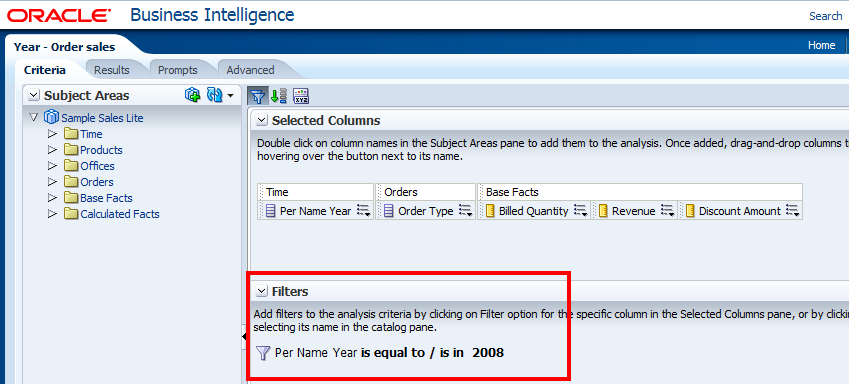
In following example I have applied a filter on year = 2008 in OBIEE presentation services.
SmartView_Integration_4
Now in Excel, The formats are retained the same, but just data is limited to year 2008, since there is a filter in OBIEE Analysis. (If data is not changed immediately, just click the refresh button available in Excel toolbar ribbon)
 SmartView_Integration_5
Read More
Posted in OBIEE | No comments

Thursday, 2 May 2013

OBIEE11g - Drop down reports

Posted on 00:51 by Unknown

Aim is to select a report from the drop down list and open a report in a new window


This exercise is carried out on OBIEE 11g version.


First of all I am going to open few existing reports and copying the URLs in the address bar of the IE. We have to use those URLs in the java script code shown below.


In the code - I have copy pasted the URLs of the 4 existing reports on my machine - look at the Option value tag and have done some kind of formatting. 


You can replace the URLs by URLs of your own reports and check if that works or not.
 Here I want the report to be opened in a new window and hence the window.open(newPage) in the java scription function GOTO()


Put this code in the Text object of Dashboard editor and check the HTML option.


<html>
<SCRIPT LANGUAGE="JavaScript">
<!--
function GOTO(frm) {
    var newPage = frm.url.options[frm.url.selectedIndex].value
    if (newPage != "None") {
            window.open(newPage)
    }
}
//-->
</SCRIPT>
<table width="1200" border="7" >
<tr>
<td style="background-color:#FFB089;">
<h3>SELECT A REPORT FROM THE DROPDOWN LIST AND PRESS GO</h3>
</td>
</tr>
</table> <br /><br /> 
<FORM>


<SELECT  NAME="url" WIDTH=20>
<OPTION VALUE="None">Select a report >>>


<OPTION VALUE="http://usblrnmehandal1:7001/analytics/saw.dll?PortalGo&Action=prompt&path=%2Fshared%2FRRR%2FColumnSelector">
Column selector report


<OPTION VALUE="http://usblrnmehandal1:7001/analytics/saw.dll?PortalGo&Action=prompt&path=%2Fshared%2FRRR%2FDistrictSelector">
District selector report


<OPTION VALUE="http://usblrnmehandal1:7001/analytics/saw.dll?PortalGo&Action=prompt&path=%2Fshared%2FRRR%2FInline%20Prompt">
Inline prompt report


<OPTION VALUE="http://usblrnmehandal1:7001/analytics/saw.dll?PortalGo&Action=prompt&path=%2Fshared%2FRRR%2F25th%20Percentile">
25 percentile report


</SELECT>
<INPUT TYPE=BUTTON VALUE="Go!" onClick="GOTO(this.form)">
</FORM>
</html>


We have selected here Inline Prompt report and pressed Go.
Read More
Posted in OBIEE | No comments

OBIEE11g - Add Google Search on the dashboard page

Posted on 00:46 by Unknown

Put the below HTML code in the Text object of the dashboard editor.
Check the HTML option.


<HTML>

<center> 
<FORM method=GET action="http://www.google.com/search" TARGET="_blank">
<TABLE bgcolor="#FFFFFF"><tr><td>
<A HREF=" http://www.google.com/">
<IMG SRC="http://www.google.com/logos/Logo_40wht.gif" border="0" ALT="Google" align="absmiddle"></A> 
<INPUT TYPE=text name=q size=31 maxlength=255 value="">
<INPUT TYPE=hidden name=hl value="en">
<INPUT type=submit name=btnG VALUE="Google Search">
</td></tr></TABLE> 
</FORM>
</center>

</HTML>


Read More
Posted in OBIEE | No comments
Newer Posts Older Posts Home
Subscribe to: Posts (Atom)

Popular Posts

  • [Informatica] Informatica Service is not Configured to run Impacted Session
    When I executed the informatica task using DAC, I got the below message despite the fact that all the sessions were refreshed and validated....
  • OBIEE 11g - MBean attribute access denied.
    I installed OBIEE 11.1.1.6.8 on my machine. Installation went fine and I could log in to the front end for the first time. When I   checked ...
  • OBIEE 11g - State: HY000. Code: 10058. [NQODBC] [SQL_STATE: HY000] [nQSError: 10058] A general error has occurred. [nQSError: 46118] Out of disk space. (HY000)
    Error Details Error Codes: AAD5E5X3:OPR4ONWY:U9IM8TAC Odbc driver returned an error (SQLFetchScroll). State: HY000. Code: 10058. [NQODBC] [S...
  • Informatica Powercenter Workflow Manager Repository Navigator docking float issue
    In case you’re also experiencing where your Repository Navigator is not dock or attached and it seems just floating within Workflow Manager ...
  • [OBIEE11g] - OBIEE Dashboard for Informatica Metadata Reporting
    The metadata that Informatica Power Center 8 retains in its repository can be exposed via OBIEE reports and dashboards. This metadata includ...
  • [OBIEE11g] - Drill Down to Sub Reports Passing Multiple Prompts Values
    People who are familiar with passing multiple parameter values to drill down reports using the GO-URL can now take a breath of fresh air. In...
  • OBIEE 11g not showing new dashboard in the drop down menu
    When creating New dashboard in  OBIEE 11g, I have faced with issue that dashboard name did not show up in drop down dashboard menu. 1. When ...
  • OBIEE 11g Hide/Show Sections based on Dashboard Prompt
    allow a user’s interaction to hide/show certain sections of a dashboard. In this particular case the user wanted to choose either ‘Quarterly...
  • [OBIEE11g] - Creating Dashboard Traversing Through Graph
    The general requirement asked for by customers is that they want to Click on the Main Dashboard Page’s Graph and be transferred to the other...
  • OBIEE 11g - Query Limit
    Query limit and number of minutes a query can run per physical layer database connection, follow the below steps. > Login to Repository u...

Categories

  • BI Publisher
  • DAC
  • DataWarehouse
  • Hyperion
  • Informatica
  • OBIEE
  • ODI
  • Oracle Applications EBS 12.1.3
  • Oracle Database
  • PL/SQL
  • SQL
  • Unix/Linux

Blog Archive

  • ▼  2013 (500)
    • ▼  November (8)
      • OBIEE11g - Custom BI Time Dimension Populate Datab...
      • OBIEE 11g - Enable Report Performance Improvement ...
      • OBIEE11g - Enable Log-Level from Advanced Tab
      • OBIEE11g - Calculating First Day of Year, Quarter,...
      • OBIEE11g - Changing Default Chart Colors
      • Error : [nQSError: 13015] You do not have the perm...
      • OBIEE 11g - Query Limit
      • OBIEE 11g - Query for Yesterday Date
    • ►  October (1)
    • ►  July (4)
    • ►  June (9)
    • ►  May (15)
    • ►  April (24)
    • ►  March (43)
    • ►  February (73)
    • ►  January (323)
Powered by Blogger.

About Me

Unknown
View my complete profile